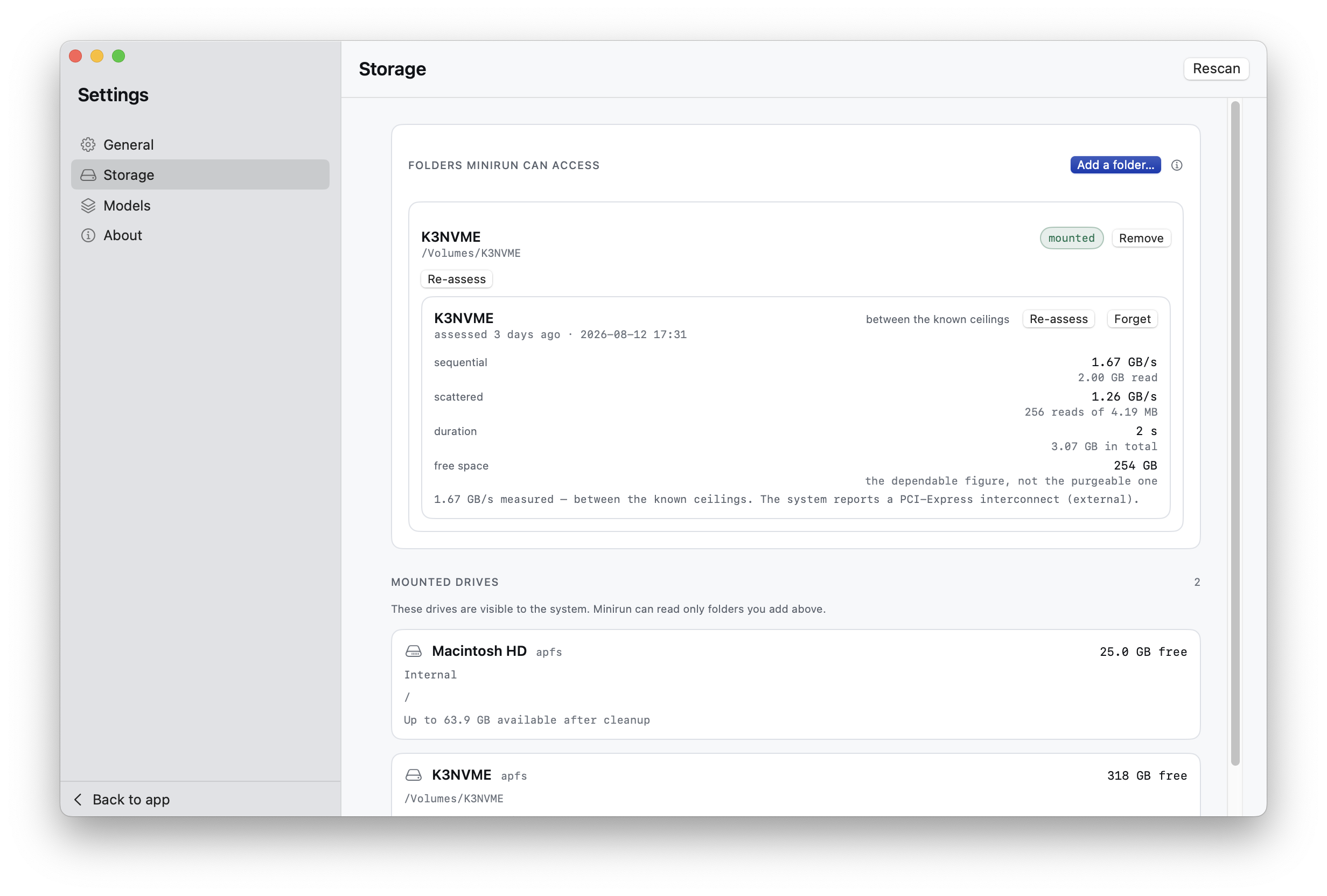
A location is not a volume
A storage location is a folder you explicitly select. A volume is the mounted disk that contains that folder. The volume list can describe capacity, connection, and availability, but it does not grant access and it does not mean every folder on the disk is registered.
This distinction explains a common first-launch state: a drive can appear under Volumes while the top of Storage still says no location has been added. Choose a folder on that drive through Add Folder to create the persistent location used for scans.
- Storage location
- A folder Minirun may reopen and scan for containers. Removing it only forgets access; it does not change files.
- Volume
- The mounted disk that provides capacity and availability context. Listing a volume does not grant folder access.
- Download destination
- A writable folder owned by one saved transfer. The transfer creates its container files there.
Add and remove a location
- Choose Add Folder
Use the system picker to select the folder containing one or more Minirun containers.
- Let the scan finish
Minirun reads container metadata and updates the local Models library.
- Reauthorize when asked
If a saved permission becomes stale after a rename or remount, select the folder again.
- Remove access
Removing the location forgets Minirun's saved access and leaves the folder contents untouched.
Keep the storage path suitable for sustained reads
A successful mount proves that the operating system can see the volume; it does not prove memory admission, download capacity, negotiated link mode, sustained throughput, power stability, or thermal stability. Treat those as separate checks.
On Mac, a direct Thunderbolt, USB4, or 10 Gb/s USB connection avoids an unnecessary hub bottleneck. On iPhone and iPad, verify the exact device's data standard and use external power when the SSD or enclosure is not stable on bus power. The same USB-C connector can otherwise hide a USB 2 path.
What full verification establishes
Full verification reconciles the complete published tree with the local container. It checks the expected paths and sizes, validates container metadata, and computes the content identity required for each payload. Positive evidence is tied to that publication and the actual local filesystem objects, not only to a familiar path string.
The verifier streams fixed-size chunks into the digest operation. Memory use therefore remains bounded by the verifier and its small amount of bookkeeping rather than growing with a multi-gigabyte weight file. Cancelling the pass stops further work and does not record a successful result.
A full pass reads every payload byte, so its duration follows the link and the container size. A complete Kimi K3 pass on an iPhone, with the container on an external NVMe reached through the phone's own port, takes around half an hour in the foreground. Keep the device powered and the volume mounted for the whole pass.
A checked copy survives a remount
A positive result is bound to the actual filesystem objects it read, not to a path string. The binding uses the volume's own UUID, and only once the held directory reports that the volume supports persistent object ids.
Across an unmount and a remount, the session device number the operating system hands out is the one thing allowed to differ: the volume UUID, every persistent object id, the size, the nanosecond modification time and the nanosecond status-change time must all still match. Any of those changing is a real contradiction and clears the remembered result. Unplug the drive, plug it back in, and a checked copy is still checked.
Spot-check and full verification
| Check | Use it for | Enables chat |
|---|---|---|
| Spot-check | A bounded sample that can reveal obvious transfer or storage damage. | No |
| Verify all files | Binding the complete local container to its current publication and runtime metadata. | Yes, when the runtime is also supported |
Granted locations and drives